This page contains apps for painting and drawing.
Procreate
This is my new favorite painting app. It is so realistic - you can almost smell the paint! This one was made for the newer iPads - gen 2 or newer. It is well worth the $4.99 price!
The newest update even supports export to Dropbox! Love that! The "smudge" tool is my favorite tool - moves the paint around so realistically. |
My first painting using Procreate ~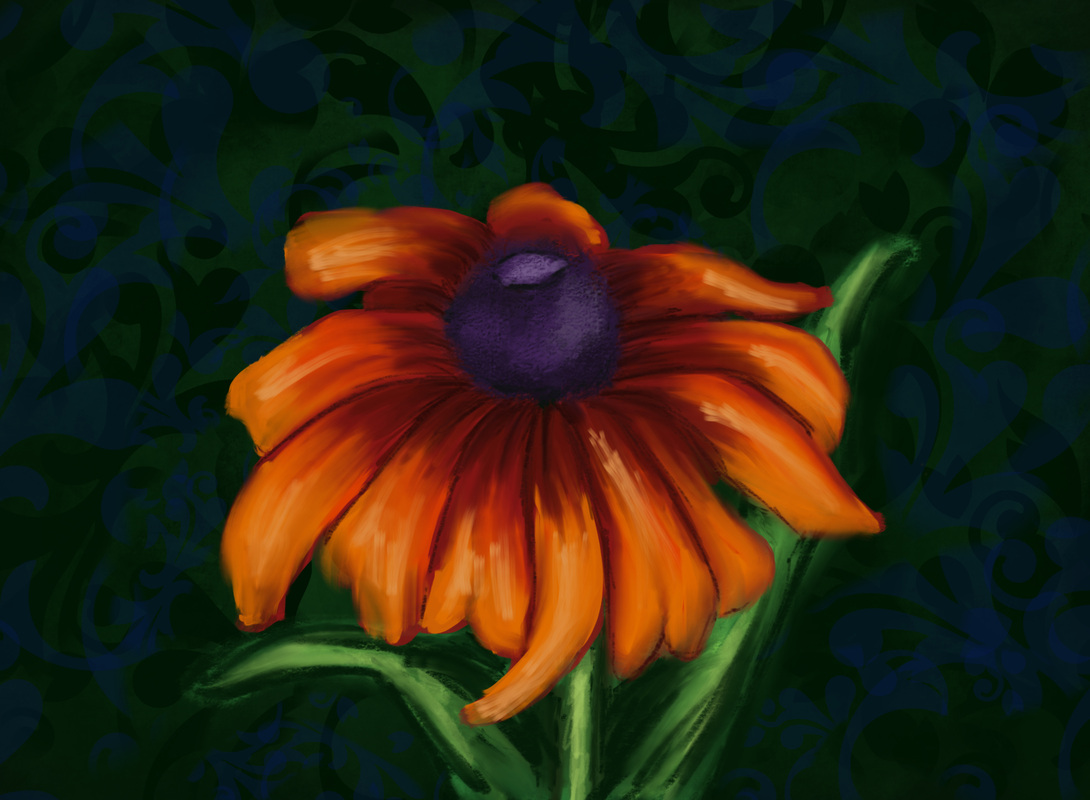
|
Brushes - In my opinion a great painting app for all ages!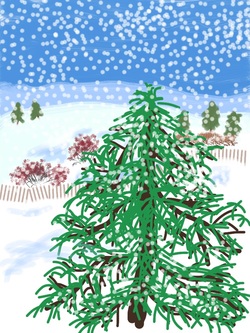
This was my very first iPad painting. I created this on 12/26/2010 while traveling for a family visit. My husband has surprised me with my iPad as a gift for Christmas. We were leaving very early the day after Christmas and I knew I had to download the Brushes app so that I could experiment with it along the 6 hour car ride. This was "the app of all apps" in my mind as I secretly wished for an iPad of my own.
I remember I was absolutely giddy as I played around with the different brushes and tools in the app. I remember thinking that my art students would find this technology exciting and hoped that some day I could give them the chance to try it out themselves. |
*update 1/2014 - Brushes 3 is now free and includes up to 10 layers! No in-app purchases required
|
Brushes Viewer
You can view the actions of your Brushes painting in your gallery. If you download the free Brushes Viewer on your Mac or PC you can play back and export your painting actions as a movie file. Here is the actions of a painting I call "Where's My Fork?".
Layers in brushesThe layers in brushes allow you to work on sections of the painting without disturbing other parts. This painting - I call Color Landscape - shows one way how layers can be used in an iPad painting. * Other great iPad apps that have the "Layers" tool are Procreate, Sketchbook X and Sketchbook Pro, and Layers.
|
|
|
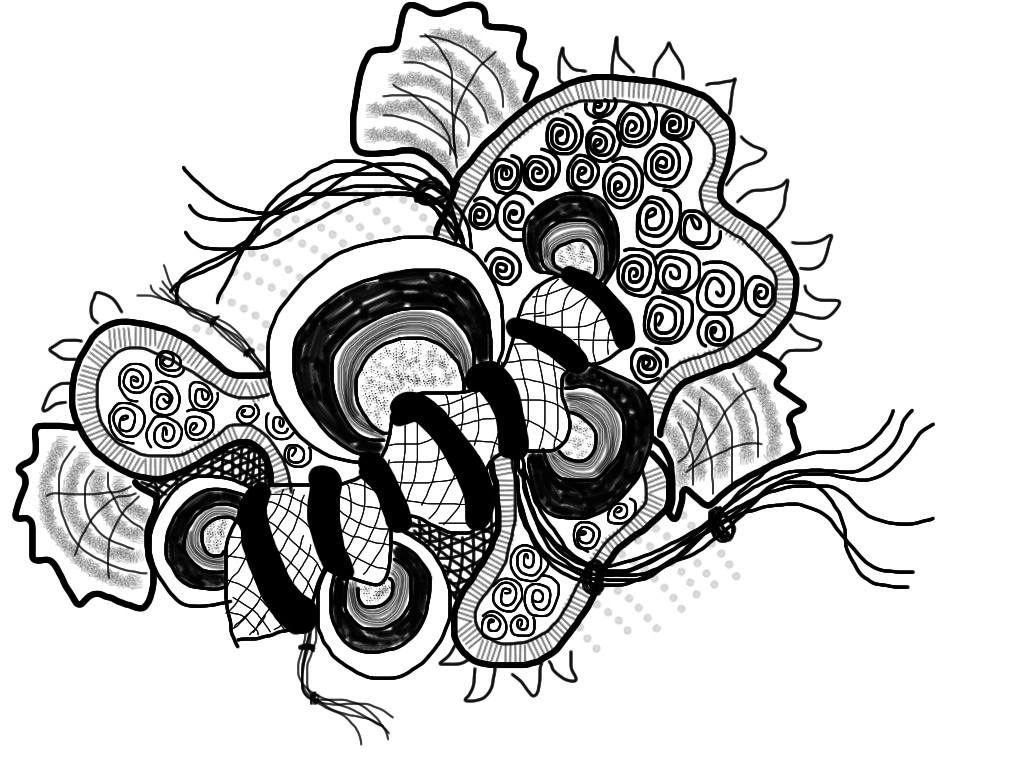
A Zentangle drawing done on the iPad
|
Student examples using Brushes app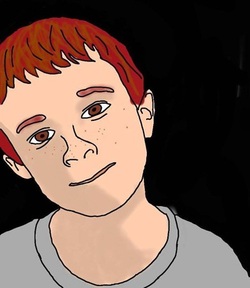
This portrait was done by a 6th grade student from Dryden Elementary in Arlington Heights, IL. Teacher, Tricia Fuglestad is very innovative in her use of technology in art.
|
Another Dryden student works - A spooky tree created by a 2nd grader using layers in Brushes.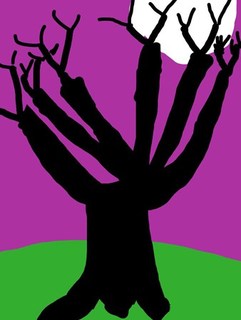
|
SketchBook Express
SketchBook Express is a FREE alternative to Brushes. This free version is easy enough to use it just doesn't have as many tools as Brushes. It would be a good one to try with students before investing in Brushes.
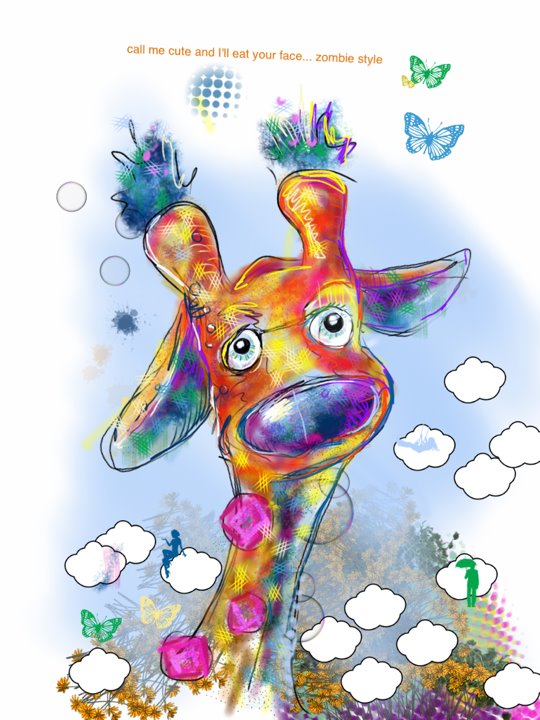
One Pro of Sketchbook over Brushs -the ability to add text to the paintings. *The Pro version is $4.99 and has many more brushes and options to use. Even some fun shapes to add to the painting. See Ian Sand's fun painting below - |
This painting was done using SketchBook Express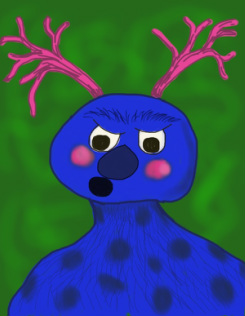
|
This iPad painting done by Ian Sands using Sketchbook Pro - Check out his blog - http://apexhsart.blogspot.com
Art Set
Art Set is a great drawing/painting app with some neat qualities. You can choose different art tools from crayon to oil paint. A plus for this app is the ability to chose different papers to create on.
This basic drawing app does not have layers, but is still a very good app for students and adults at just $.99.
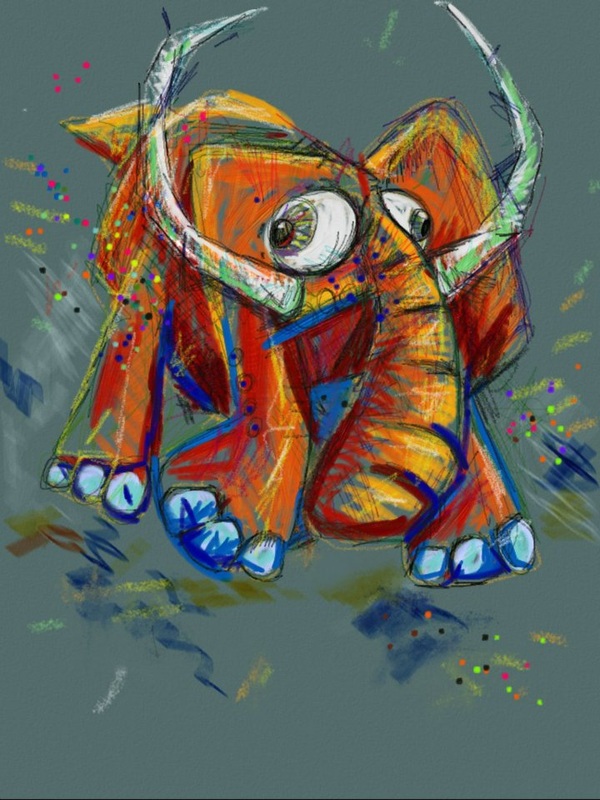
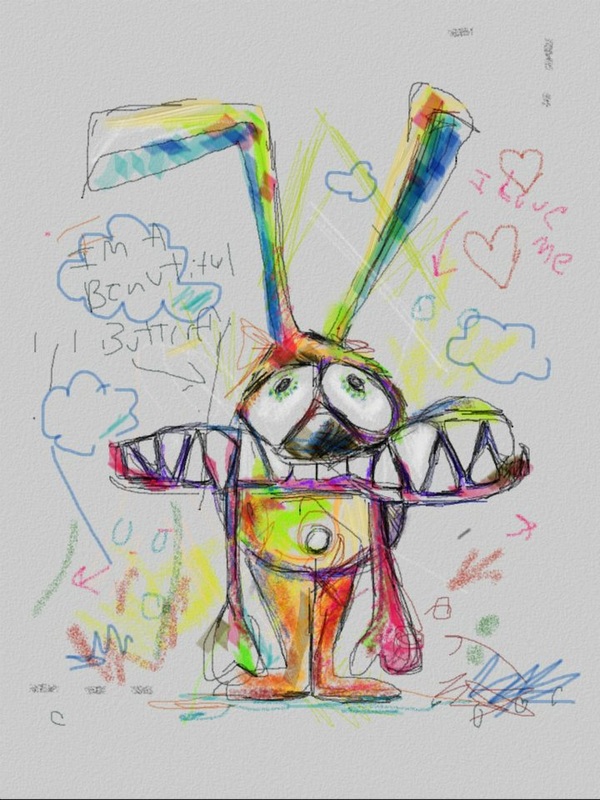
Below here are two fun examples of Artwork by Ian Sands using Art Set. Read about his picks for iPad apps in a post on his blog - http://iansands.blogspot.com/2012/09/my-three-favorite-ipad-apps-for-art.html
This basic drawing app does not have layers, but is still a very good app for students and adults at just $.99.
Below here are two fun examples of Artwork by Ian Sands using Art Set. Read about his picks for iPad apps in a post on his blog - http://iansands.blogspot.com/2012/09/my-three-favorite-ipad-apps-for-art.html
|
|
There are many other Drawing and Painting apps that are great for use with Art students
Here are some of them ----
The next four create abstract designs that can be used as artwork alone,
as inspiration background for other artworks or creative writings.
Meritum Paint
This is a free version - the Pro version is $1.99
Below is an example of a painting done using Meritum Paint. 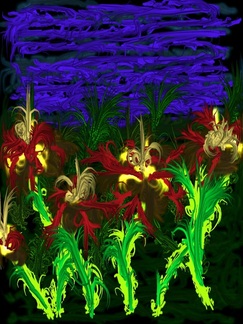
|
Spawn Glow HD for iPad
This is a free app and can be quite mesmerizing!
Below is an example of a Spawn Glow HD Painting. 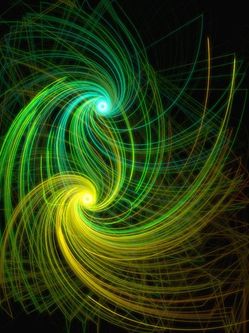
|
Spawn Lite for iPhone or iPod touch
This is a free app that also works great on the iPad.
Below is an example. 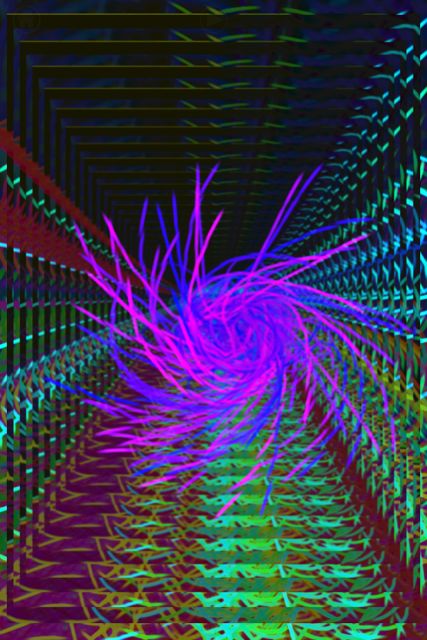
|
Artisan Paint Lite
This is the free version. There is a full version for $1.99. Once you learn how to adjust the different elements of this drawing tool you can create a wide variety of designs.
Below is a more abstract design painted with Artisan Paint. You can also use it to draw images. 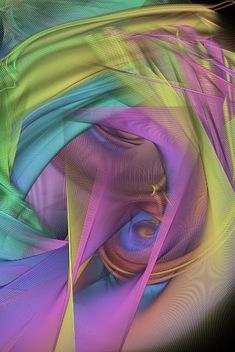
|
One of the exciting things about drawing on the iPad is using apps that create glowing light effects. The next two apps are sure to excite any student (or art teacher).
Glow Doodle
Glow Doodle is a very fun app that students will love to see and create. This app is $.99.
It would be great to create signs for students as they enter the art room. Students can use it to create neon signs combining drawing and words. Images could be imported into Brushes or SketchBook Express to add to the design. The example below is a Glow Doodle I projected onto my Smartboard as my Kindergarten students came into the Art room. 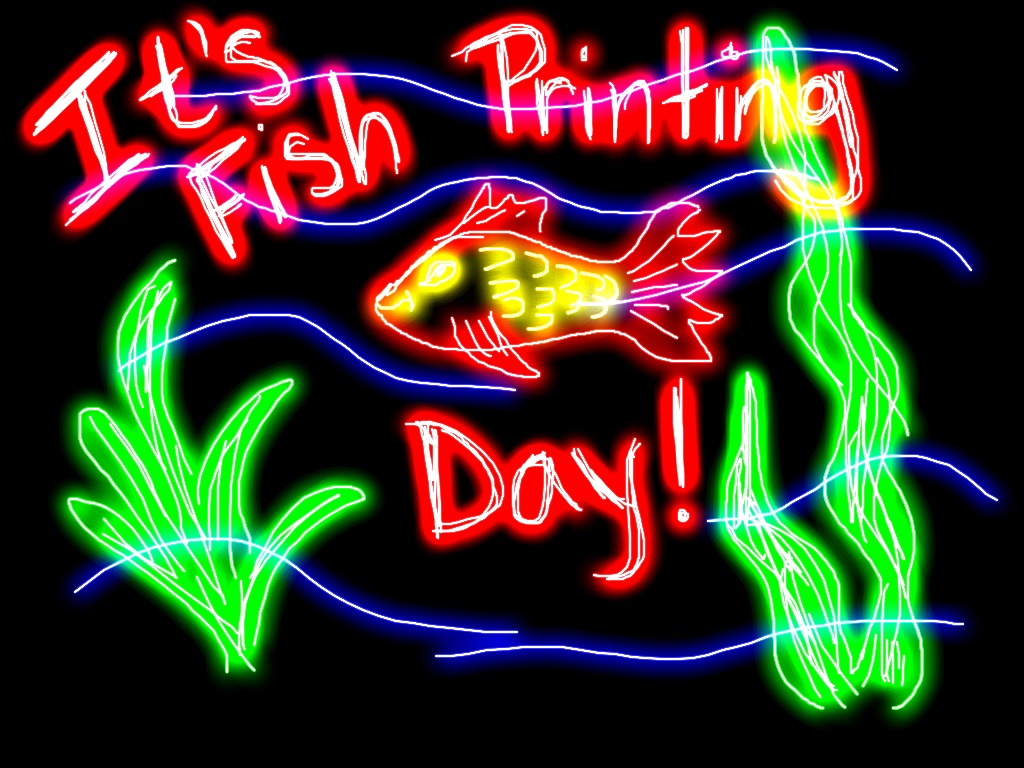
|
Glow Paint
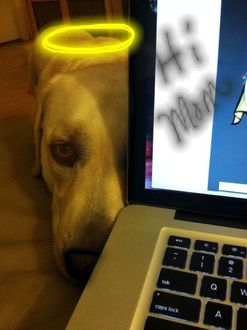
Glow Paint - draw/paint/doodle with glowing neon light is a free app. It allows you to create a picture that glows. You are able to control the tools easily. Another positive aspect to Glow Paint is that students can practice mixing colors in the app's palette by tapping colors to mix them. Glow Paint is also unique from many of similar app in that you can begin with a photo from your gallery to add glow lines to.
Below is two examples - one a complete drawing and the other a photo that has glowing additions to it. 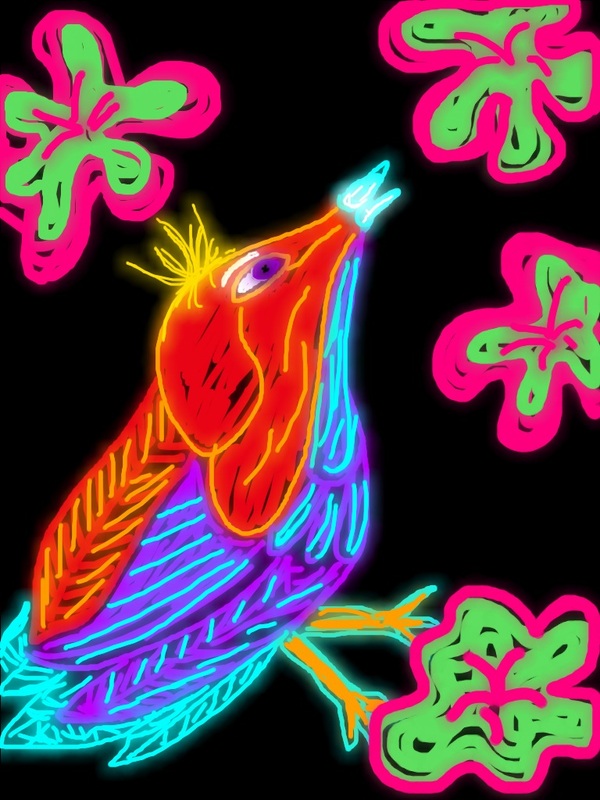
|